How to create flashcards with AI in OxyLesson
OxyLesson has no button that turns a document into a deck. You ask an AI assistant you already us...
By Kamil
Updated
4 mins read
OxyLesson has no button that turns a document into a deck. You ask an AI assistant you already use, such as Claude or ChatGPT, to write the cards, and it saves them straight into your OxyLesson library through a connector; you then check them before you study.
This article shows the setup, a prompt that works, and what to check before the first review.
Connect your assistant once
OxyLesson runs an MCP server at https://oxylesson.com/mcp. MCP (Model Context Protocol) is the standard that AI apps use to call tools in other services. Open your OxyLesson account page and find the section AI agents (MCP)
. It shows the address and the steps for each kind of app.
- In an AI app with custom connectors, such as claude.ai or ChatGPT, add a custom connector with that address, sign in to OxyLesson when the app asks, and approve the access. Anthropic describes the screens for Claude in Get started with custom connectors using remote MCP.
- In a coding agent such as Claude Code or Codex, create a personal access token on the same account page. Right after you create it, the page shows the exact command to paste into your terminal. The token is shown only once.
The connector works on the free plan too. The current plan limits are on the pricing page.
What the assistant can do in your library
The connector lets the assistant list your tags, search your cards, read your review statistics, create cards, edit and retag them, and delete cards. Deleting always shows a preview first and needs a second confirmation. When you ask for cards it already has, OxyLesson skips the duplicates instead of saving them twice.
The server tells the assistant to search your cards and tags before it adds anything, so it tends to reuse your tag names instead of inventing new ones.
A prompt that gives usable cards
Paste your source text into the chat (a chapter you are reading, lecture notes, a page of documentation) and say exactly what you want back. For example:
Read the notes below. Write 15 flashcards for the facts I will be tested on, one fact per card, with the question on the front and a short answer on the back. Search my OxyLesson cards first and skip anything I already have. Tag the new cards
biology-ch3.
One fact per card keeps each answer short enough to recall in a few seconds. A tag for the batch lets you find these cards again in the library, and skip anything I already have
makes the assistant search before it writes.
For vocabulary, ask for the word on the front, the translation on the back, and the sentence where you found the word in the notes field. The sentence shows up when you review the card and helps you remember where the word came from.
Check the cards before you study them
AI drafts contain mistakes: a wrong date, an answer that is too long, two facts squeezed onto one card. Open the library, filter by the tag from your prompt, and read the new cards once. Fix or delete what is wrong before your first review, because a wrong card you have reviewed ten times is harder to unlearn than one you never studied.
The card form has smaller AI helpers for this pass, in the tool row under each side:
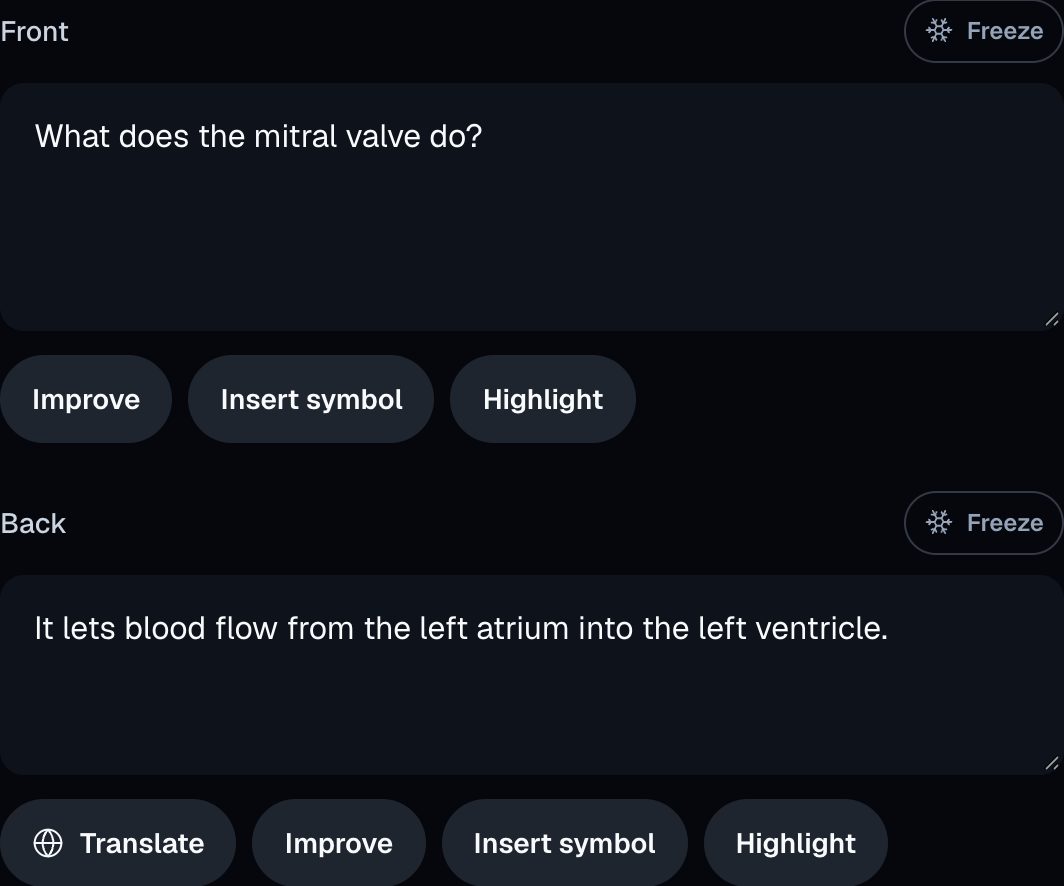
Improve
rewrites the front or the back and puts the result into the field. Nothing is saved until you save the card.Translate
on the back side translates the front into the language you pick.- In a cloze note,
Suggest blanks with AI
proposes words to hide, and you accept or skip each one. Help me understand
adds a short explanation with an example sentence to the notes, andHelp me remember
adds a memory hook.
Then study as usual
Once the cards look right, start a review. OxyLesson schedules each card with the FSRS algorithm, so the cards you find easy come back less often and the ones you forget come back sooner.